
Can I watch several IPTV channels at the same time?
Yes. In IPTVGenie you add up to four channels to Multiview and see them at the same time, two side by side or four in a grid. Exactly one channel always has the sound, and you choose it with a tap. This works on iPad, Mac and Apple TV; your login has to allow that many streams at once.
How to put it together
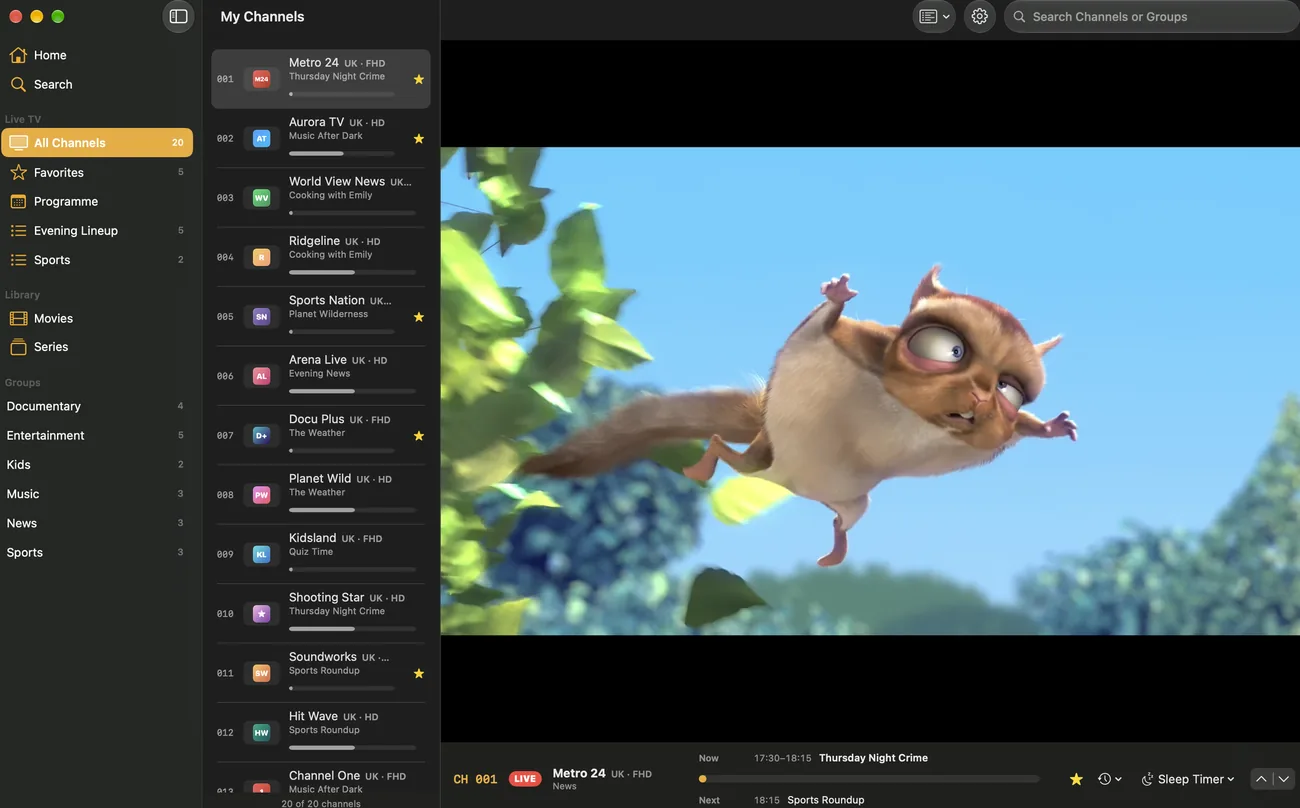
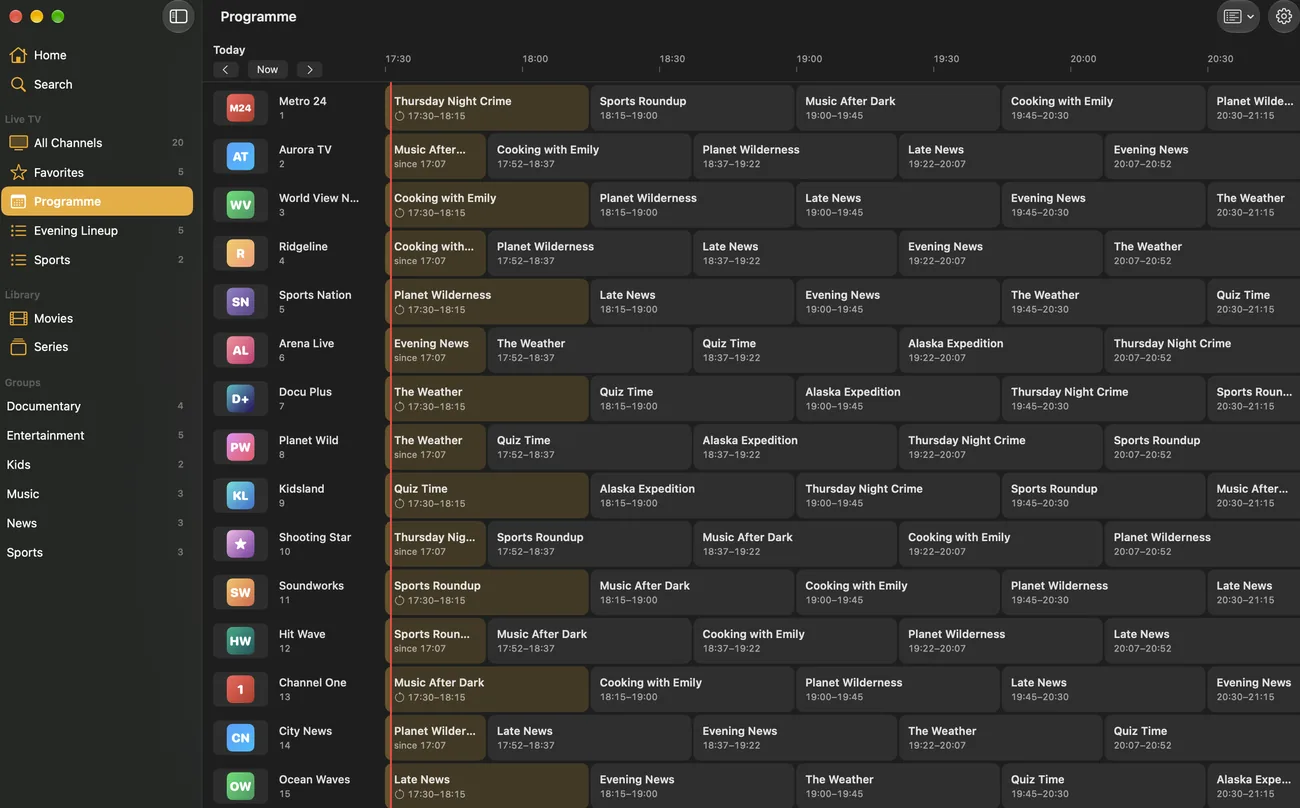
Open a channel’s menu, in the channel list, the TV guide or on the start page, and choose “Add to Multiview”. You open it with “Multiview” in the bar; you fill free spaces with “Add Channel” from favorites, recently watched or all channels.
- One channel fills the screen, two sit side by side, three or four in a grid
- “Replace Channel…” swaps a space, “Remove” clears it
- When you close Multiview, the channels stay selected for next time
Sound and large view
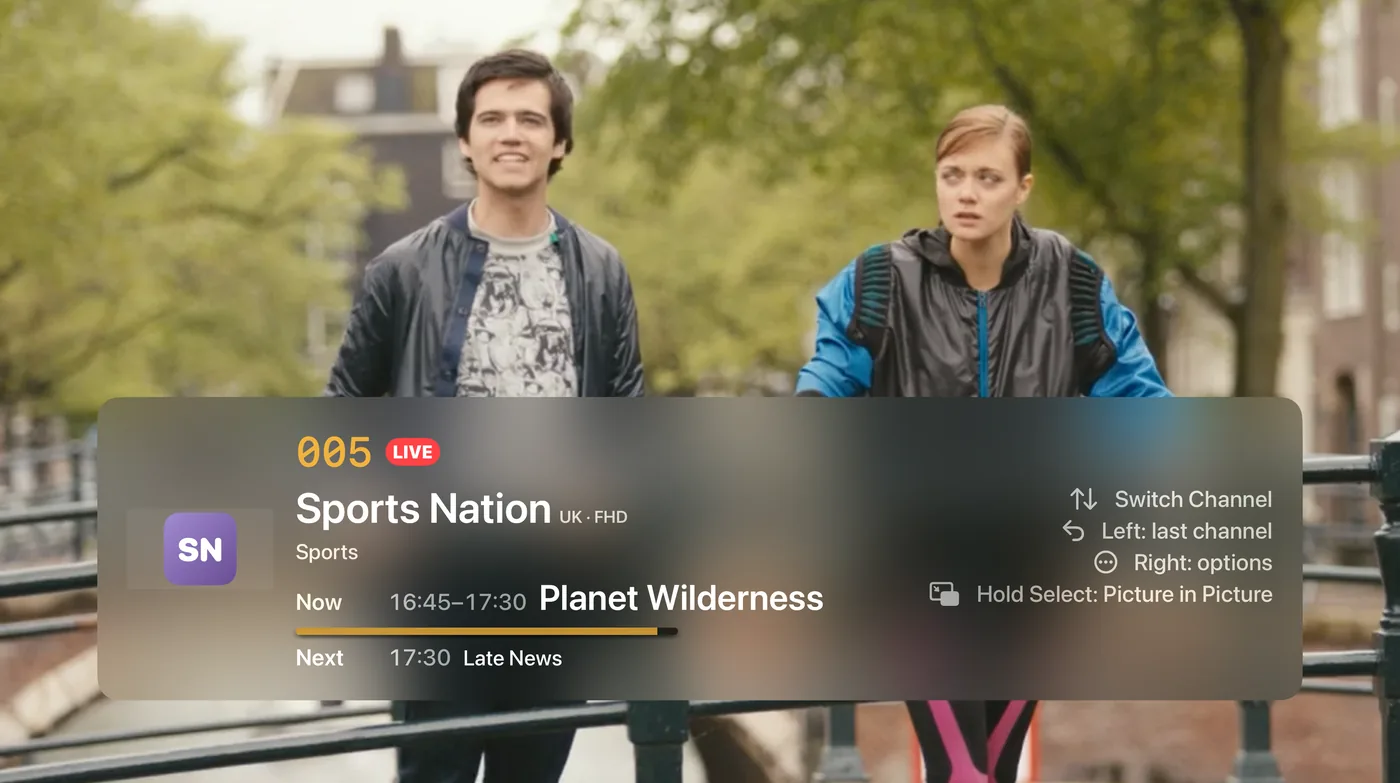
Only one channel has sound, marked by the speaker and the coloured border. On iPad and Mac you give another channel the sound with a tap or click, and a double tap shows it large. On Apple TV the sound follows the focus, and the Select button on the remote shows the channel large.
- “Show Large” and “Show All” are also in every channel’s menu
In a window of its own on the Mac
On the Mac, Multiview opens in a window of its own that you drag freely, resize or use full screen; Esc closes it. On Apple TV you also start it from the playing picture: swipe right and choose “Multiview with This Channel”.
How to start Multiview
- Open Live TV and open a channel’s menu: touch and hold, or right-click on the Mac.
- Choose “Add to Multiview” and repeat this for up to three more channels.
- Tap “Multiview” in the bar.
- Tap a channel to give it the sound.
Tips for Multiview
Enough connections
Each channel is a stream of its own. If your Xtream login allows fewer, IPTVGenie warns you at the top of Multiview.
Always Apple’s player
Multiview plays with Apple’s player, even if you have chosen VLC. If a channel stays black, try it on its own.
Live channels only
Multiview takes live channels; movies, series and programmes from the archive play on their own.
Frequently asked questions
Is Multiview available on the iPhone?
No, Multiview is made for larger screens and is available on iPad, Mac and Apple TV. On the iPhone you keep watching in Picture in Picture while you use another app, and you jump back to the last channel with a tap, for example to switch back and forth between two matches.
How many connections do I need for four channels?
As many as the channels you show at once: four channels are four streams, and many logins allow only one or two. With Xtream Codes logins, IPTVGenie knows the allowed number and warns you when you add more channels; the others may then stay black. With an M3U playlist, ask your provider.
Can I put movies or series into Multiview?
No, Multiview shows live channels from your playlist. Movies, series and missed programmes from the archive play in their own player, on the Mac in a window of its own. When you open Multiview, the channel playing on its own stops, so your login does not needlessly count one more stream.
Try it with your own playlist
Download on the App StoreTry everything free for 30 days, with no subscription and no payment details.For iPhone and iPad with iOS 18 or later, Apple TV with tvOS 18 or later and Mac with macOS 14.2 or later.