How do I watch IPTV on iPhone?
Download an IPTV app such as IPTVGenie from the App Store and add your provider’s details: an M3U link, an M3U file or an Xtream Codes login. The app then shows the channel list, TV guide (EPG), movies and series. IPTVGenie runs on iOS 18 and later and syncs your playlist with iPad, Mac and Apple TV through iCloud.
Live TV in your hand
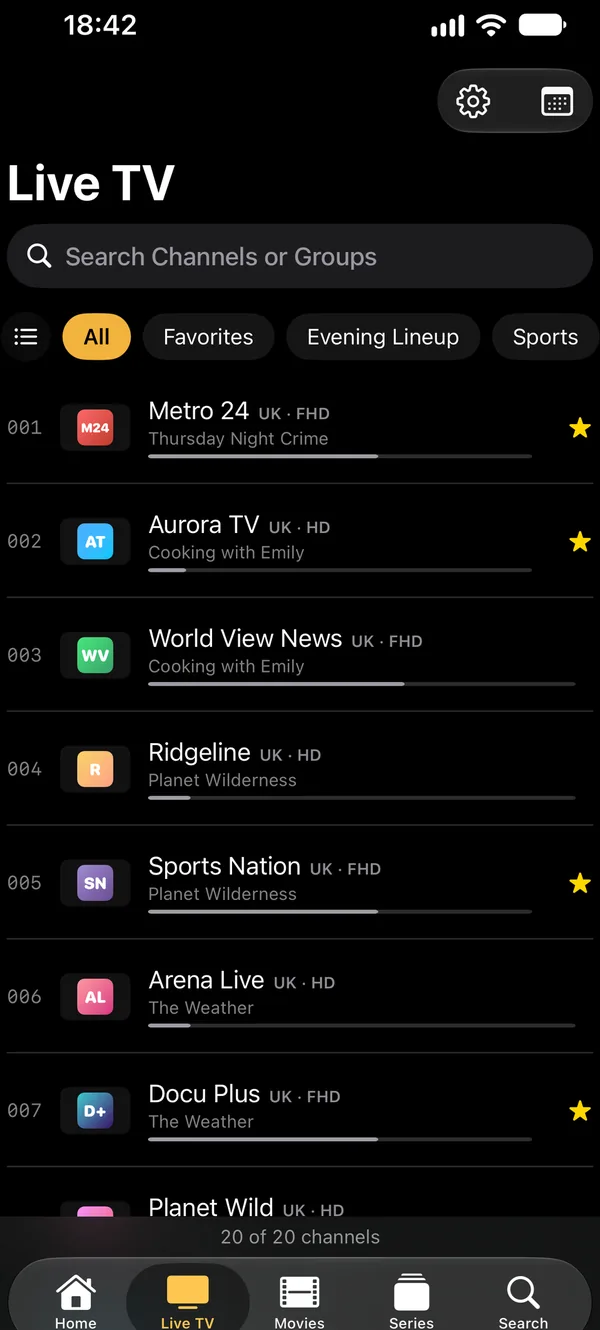
The channel list with logos, groups and search, with “Now” and “Next” under every channel. One tap to the next channel or back to the last one.
- Picture in Picture: keep watching while you use another app
- Fill Screen without black bars, with a button or a pinch
- A sleep timer for falling asleep in front of the TV you hold in your hand
EPG and reminders
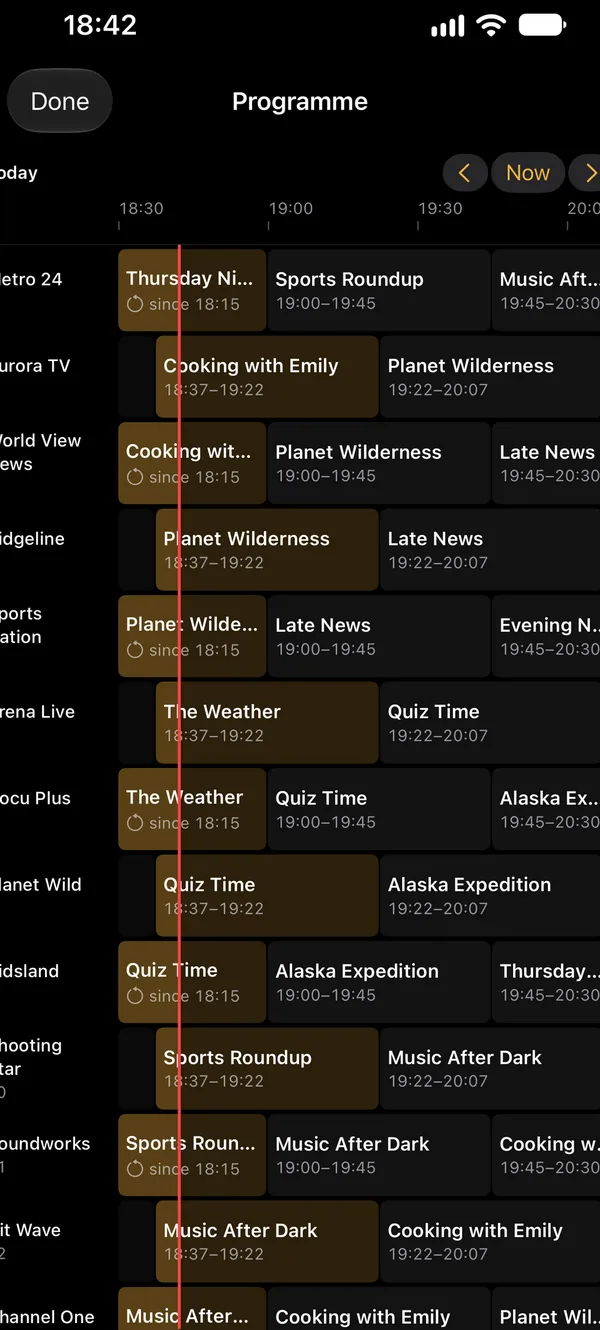
The TV guide in a grid across all channels. Reminders let you know before a show starts, as a Live Activity on the Lock Screen and in the Dynamic Island if you like.
- Watch missed shows later if your provider has an archive
- “Tonight”: the evening’s picks on the home screen
Widgets, Siri and the home screen
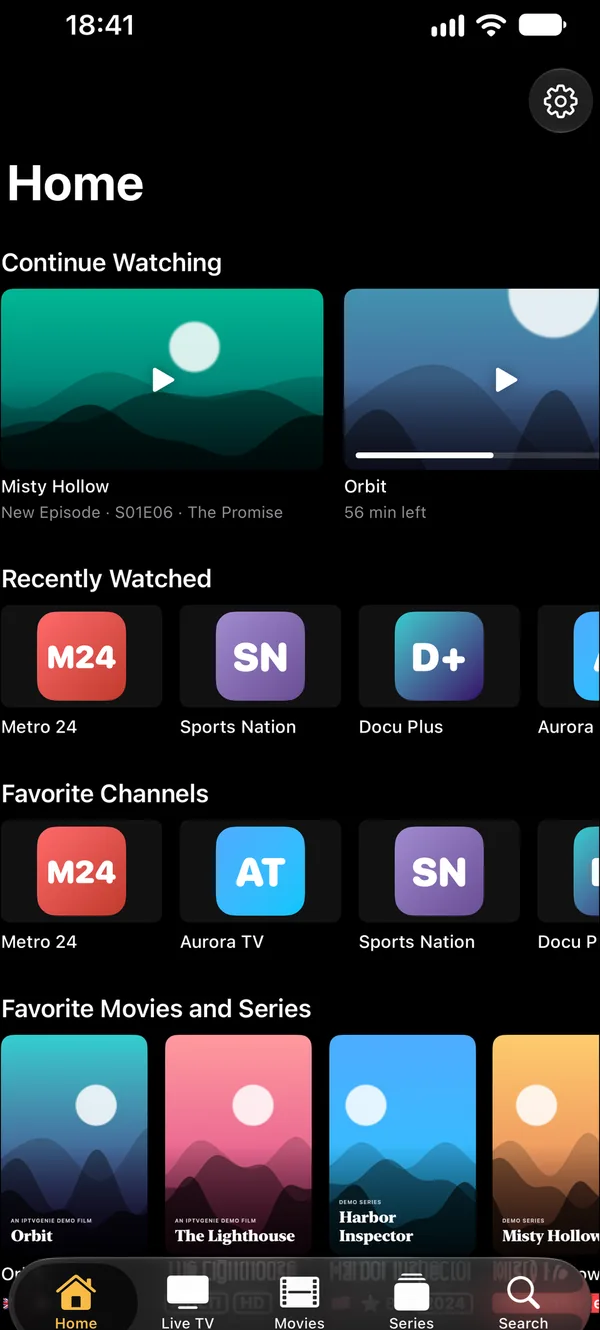
The start page shows what you watched last, big, and your favorite channels without sideways scrolling. Widgets make it even quicker from the Home Screen.
- Continue Watching widgets in three sizes and for the Lock Screen, plus Channel Buttons
- A Control Center button for the last channel
- Siri shortcuts for your channels
How to set up IPTV on iPhone
- Download IPTVGenie from the App Store.
- Tap “Add Playlist” and choose “Xtream”, “Link” or “File”.
- Enter your provider’s details and save.
- Optional: add a TV guide (XMLTV), set up favorites, and leave iCloud sync on for your other devices.
Tips for IPTV on the go
Data usage
An HD stream uses roughly 2 to 3 GB per hour. On cellular, Wi-Fi or a large plan pays off.
One connection?
If something is already playing at home, IPTVGenie warns you before your iPhone pushes that stream off.
Buffering?
The guide “IPTV buffering” shows step by step how to find the cause.
Frequently asked questions
Which iOS version does IPTVGenie need?
iOS 18 or later on iPhone and iPadOS 18 or later on iPad. The same app also runs on Mac with macOS 14.2 and on Apple TV with tvOS 18, and one purchase works everywhere. On devices that support them, reminders also appear as Live Activities on the Lock Screen and in the Dynamic Island.
Can I watch several channels at once on iPad?
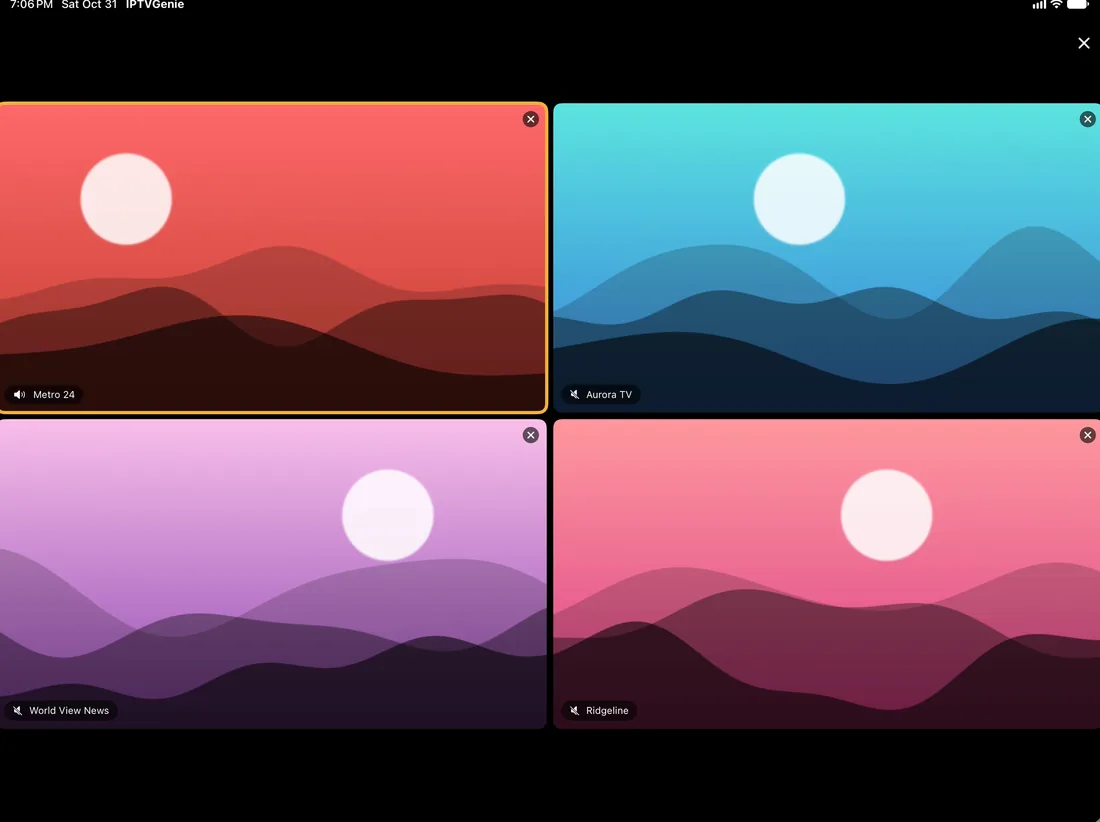
Yes. Multiview shows up to four channels at once; the sound comes from the channel you tap. That is handy for following several matches at the same time. Keep in mind that each channel uses a connection of your login; if your provider allows only one, only one channel plays at a time.
Is there Picture in Picture?
Yes. With Apple’s player the channel keeps playing in a small window while you use another app, write or browse. You can move and resize the window like in other apps. Picture in Picture is not available with the VLC player; choose Apple’s player in Settings to use this feature.
Can I open an M3U file on iPhone?
Yes. Choose “File” when adding a playlist and pick the M3U or M3U8 file from the Files app, iCloud Drive included. Through iCloud the playlist is then ready on your other devices too. If your provider gives you an M3U link, prefer that: it is reloaded regularly and stays up to date.
Does my purchase work on iPhone and iPad?
Yes. A subscription or the one-time purchase works on iPhone, iPad, Mac and Apple TV as long as the same Apple Account is signed in, and with Family Sharing for up to five family members. After buying on your iPhone, the iPad unlocks automatically; otherwise use “Restore Purchases” in Settings.
Try it with your own playlist
Download on the App StoreTry everything free for 30 days, with no subscription and no payment details.For iPhone and iPad with iOS 18 or later, Apple TV with tvOS 18 or later and Mac with macOS 14.2 or later.