Does IPTVGenie have parental controls?
Yes. With a 6-digit PIN you hide adult groups, categories and single channels; IPTVGenie protects groups such as “Adult” or “XXX” by itself when you set it up. A kids profile never shows protected content and can only be left with the PIN. The settings sync through iCloud on all devices.
Protected content disappears completely
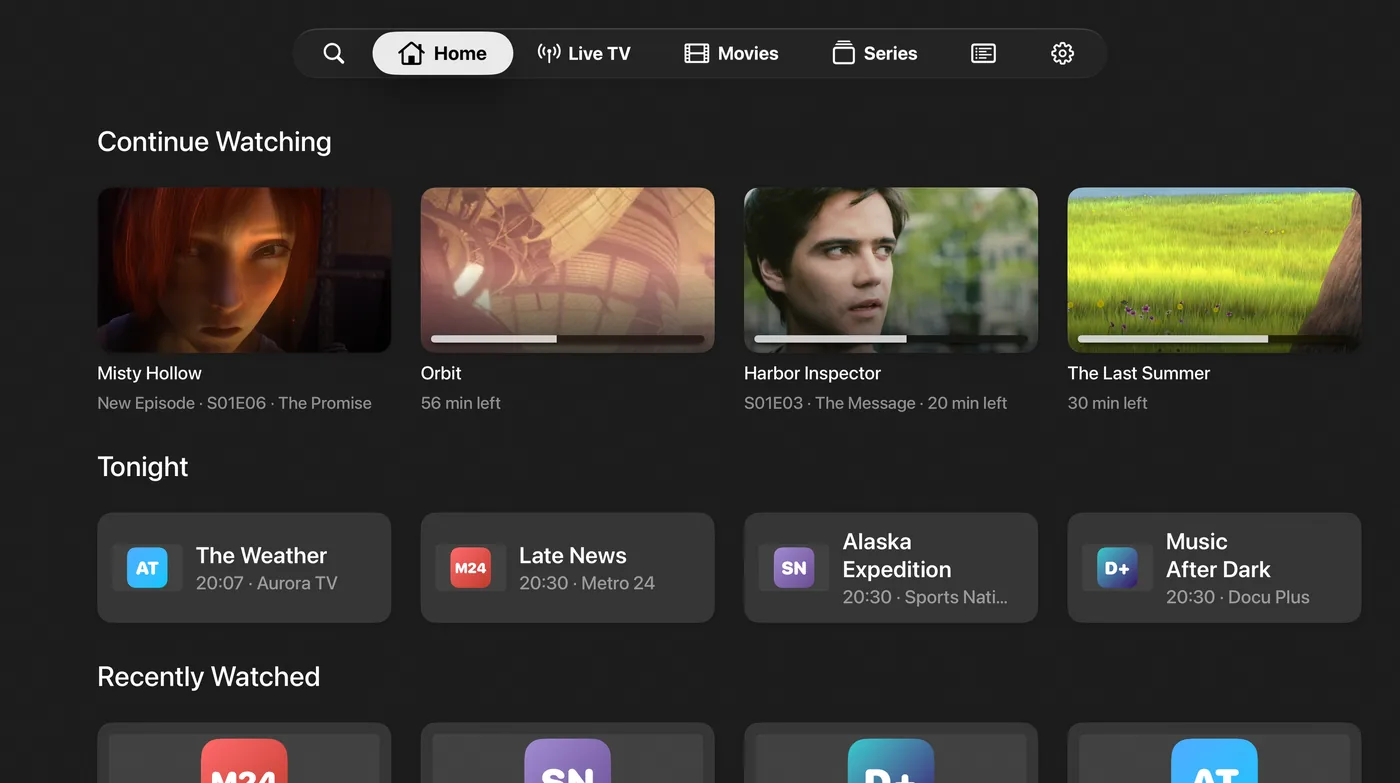
When parental controls are on, protected groups, movie and series categories and channels are not greyed out but hidden completely, in “Continue Watching” and in Multiview too. IPTVGenie protects new groups with clear names automatically as soon as they appear in your playlist.
- You mark single channels or whole groups with “Adults Only” in the menu
- IPTVGenie always starts protected and protects again as soon as the app goes into the background
The kids profile
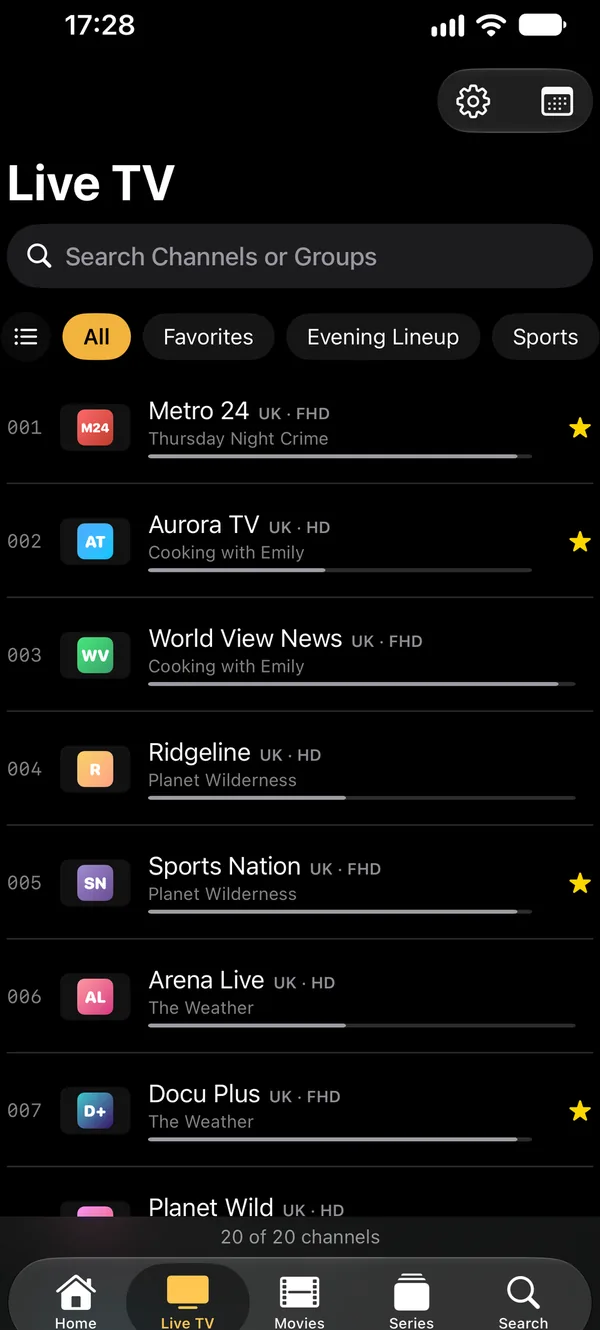
A kids profile never shows what parental controls protect, not even with the PIN or Face ID; you only need the PIN to leave it. Creating, changing or deleting profiles is not possible inside it. Set up parental controls first, or a kids profile hides nothing either.
Up to six profiles
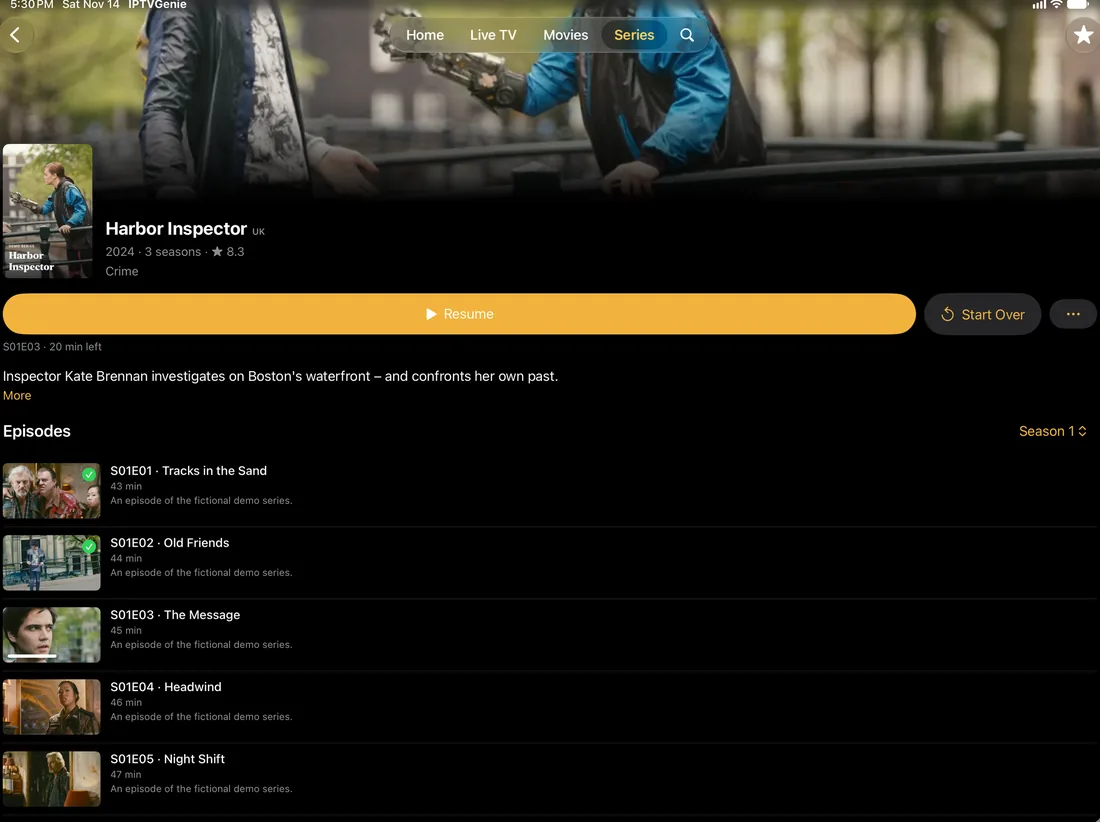
Each profile has its own favorites, channel lists, recently watched channels and “Continue Watching”. Playlists, settings and parental controls apply to everyone. If there is more than one profile, IPTVGenie asks “Who’s Watching?” at launch; on Apple TV there is a tab of its own for this, “Profiles”.
How to set up parental controls
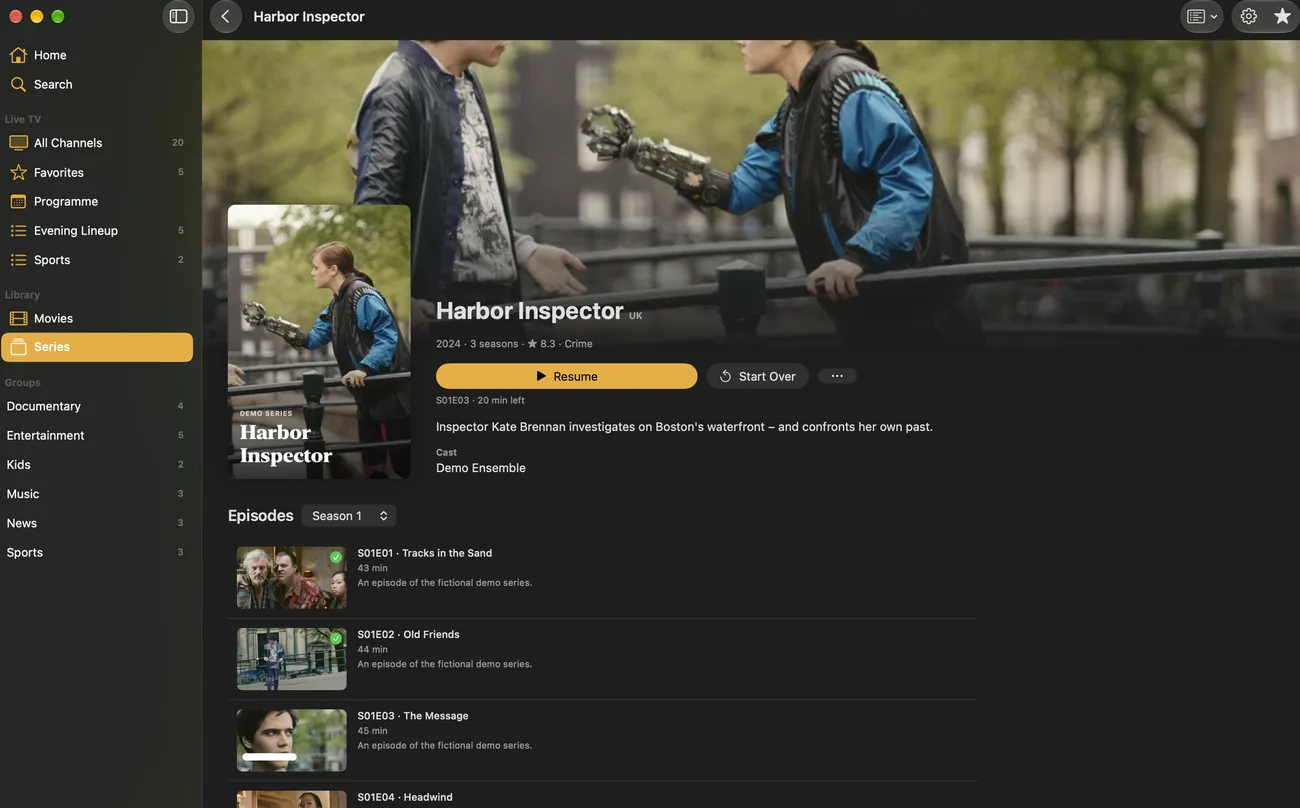
- In IPTVGenie, open the settings and the “Parental Controls” section there.
- Choose “Set Up Parental Controls…” and enter a 6-digit PIN twice.
- Check under “Protected Groups and Channels…” what is hidden, and add what is missing.
- Under “Profiles”, create a profile with “Add Profile…” and turn on “Kids Profile”.
Tips for parental controls
Remember the PIN
Without the PIN, protected content can no longer be shown and parental controls cannot be turned off.
Face ID or Touch ID
On iPhone, iPad and Mac you can also sign in as an adult with your face or finger; on Apple TV with the PIN.
Wrong PIN
After five wrong tries the app waits 30 seconds, and longer after each further wrong try.
Frequently asked questions
What happens if I forget the PIN?
IPTVGenie does not store the PIN in plain text, and there is no way in the app to reset it. Without it, protected content can no longer be shown, and you can neither change nor turn off parental controls. So write the PIN down when you set it up and keep it where children will not find it.
Do parental controls apply on all devices?
Yes. The PIN and the protected groups and channels sync through iCloud, on iPhone, iPad, Mac and Apple TV with the same Apple Account. Whether you are currently signed in as an adult, on the other hand, only applies to that device, as do Face ID and Touch ID. So the iPhone never unlocks the TV by accident.
Does IPTVGenie filter by age rating?
No. IPTVGenie does not know the age ratings of individual programmes. It protects by groups, categories and channels: the app recognises names like “Adult”, “XXX” or “18+” by itself, and you mark everything else with “Adults Only”. That way you protect, channel by channel, whatever your playlist has filed in an unhelpful place.
Try it with your own playlist
Download on the App StoreTry everything free for 30 days, with no subscription and no payment details.For iPhone and iPad with iOS 18 or later, Apple TV with tvOS 18 or later and Mac with macOS 14.2 or later.